
Looking for a specific answer? Browse the detailed FAQ →
A step-by-step guide to the free metronome and Common Time Pro. Start with a steady pulse, then build mixed-meter loops, shape individual beats, and create a practice routine.
01 · Free
Start your first session
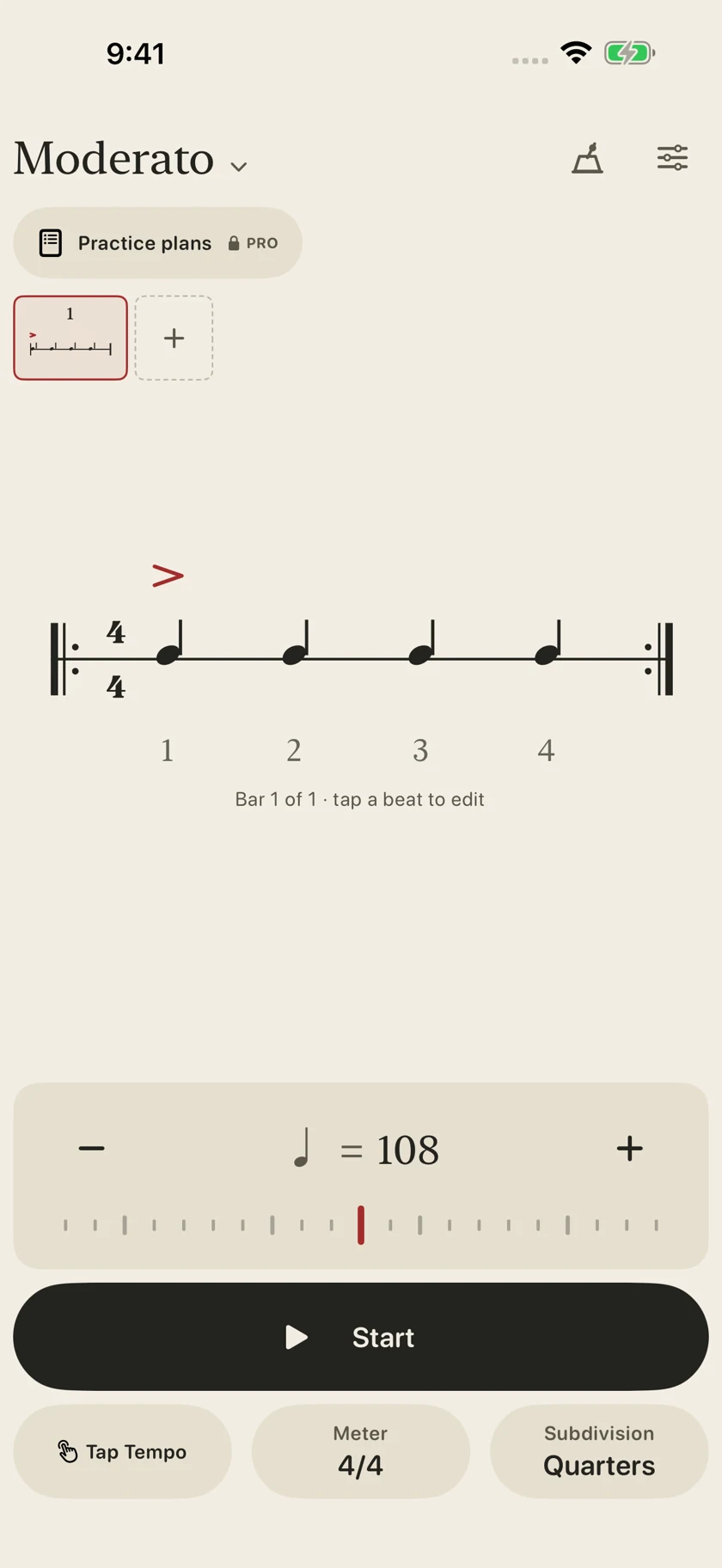
The main screen puts the written bar in the center, the tempo above the Start button, and Meter and Subdivision at the bottom.
- Open Common Time. If you haven’t installed it, get the free app. It requires iOS or iPadOS 18 or later.
- Choose Meter → 4/4. This gives you a familiar four-beat bar.
- Set a comfortable tempo. Try 80 BPM using the tempo controls. The screenshot shows a different example tempo.
- Choose Subdivision → Quarters. Start with one click per quarter-note beat.
- Tap Start. Follow the highlighted position in the notation and count along. Tap Stop when you’re finished.
02 · Free
Set tempo and prepare your entrance
Three ways to set the pace
- Plus and minus: make small changes to the displayed BPM.
- Tempo ruler: move along the ruler for a larger adjustment. The metronome supports 20–300 BPM.
- Tap Tempo: tap several times at the pace you want. Keep your taps evenly spaced so the app can estimate the pulse.
Check the note symbol beside the BPM. It tells you which note value the tempo counts; the same number can feel different when the pulse unit changes.
Use a one-bar count-in
- Turn on the count-in control, marked with the small 1 2 / 3 4 counting symbol.
- Tap Start and listen through the preparation bar.
- Enter when the count-in finishes and the repeating pattern begins.
The count-in follows the current meter. For a practice plan, you can also enable a separate count-in before every section in the plan’s settings.
03 · Free
Choose a meter and hear its grouping
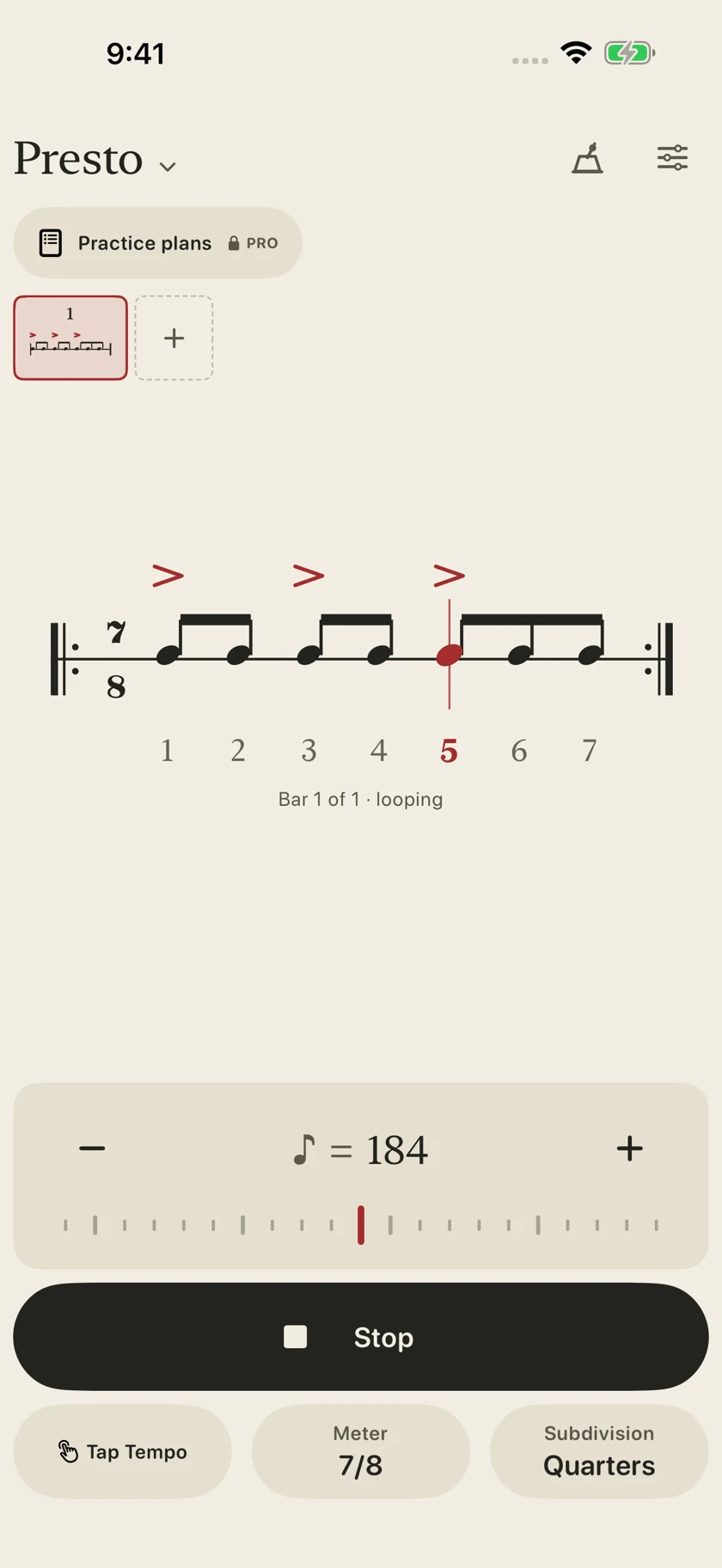
- Tap Meter and choose a preset, or use the custom-meter controls.
- For an irregular meter, choose how its beats are grouped. In 7/8, try 2 + 2 + 3.
- Listen for the start of each group and follow the written bar.
- Compare another grouping, such as 3 + 2 + 2. The bar has the same overall length, but its internal emphasis changes.
Custom meters accept a numerator from 1–16 and a denominator of 2, 4, 8, or 16. Groups must add up to the numerator.
04 · Free
Build a repeating phrase of up to four bars
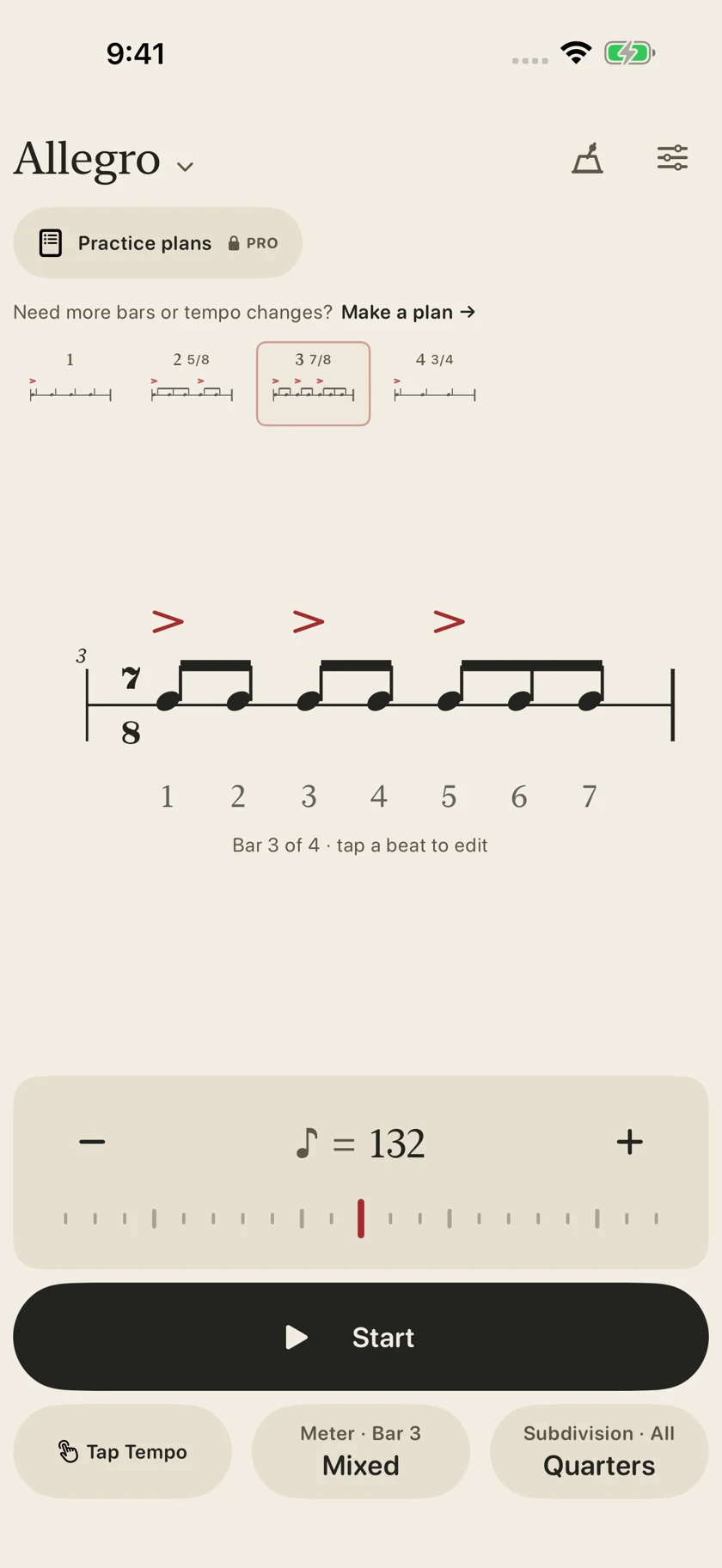
You don’t need Pro to loop several bars. The bar strip above the notation shows the bars in your current phrase.
- Set up your first bar’s meter and rhythm.
- Tap the + tile in the bar strip to add a bar. You can build a phrase of up to four bars.
- Select a bar tile to work on that bar. Use Meter to give it its own time signature and grouping.
- Repeat for the other bars. For example, combine 4/4 → 5/8 → 7/8 → 4/4.
- Tap Start. Common Time plays the phrase in order, then returns to the first bar.
When a control offers a scope, check whether it applies to the selected bar or all bars before making a change. The bar number and highlighted tile help you keep your place.
05 · Free & Pro
Choose subdivisions, then shape each beat
Free: tap Subdivision to choose a compatible quarter-note, eighth-note, triplet, or sixteenth-note rhythm. The available choices depend on the meter and pulse. Use the accent controls to shape the pulse.
Pro: edit beats independently
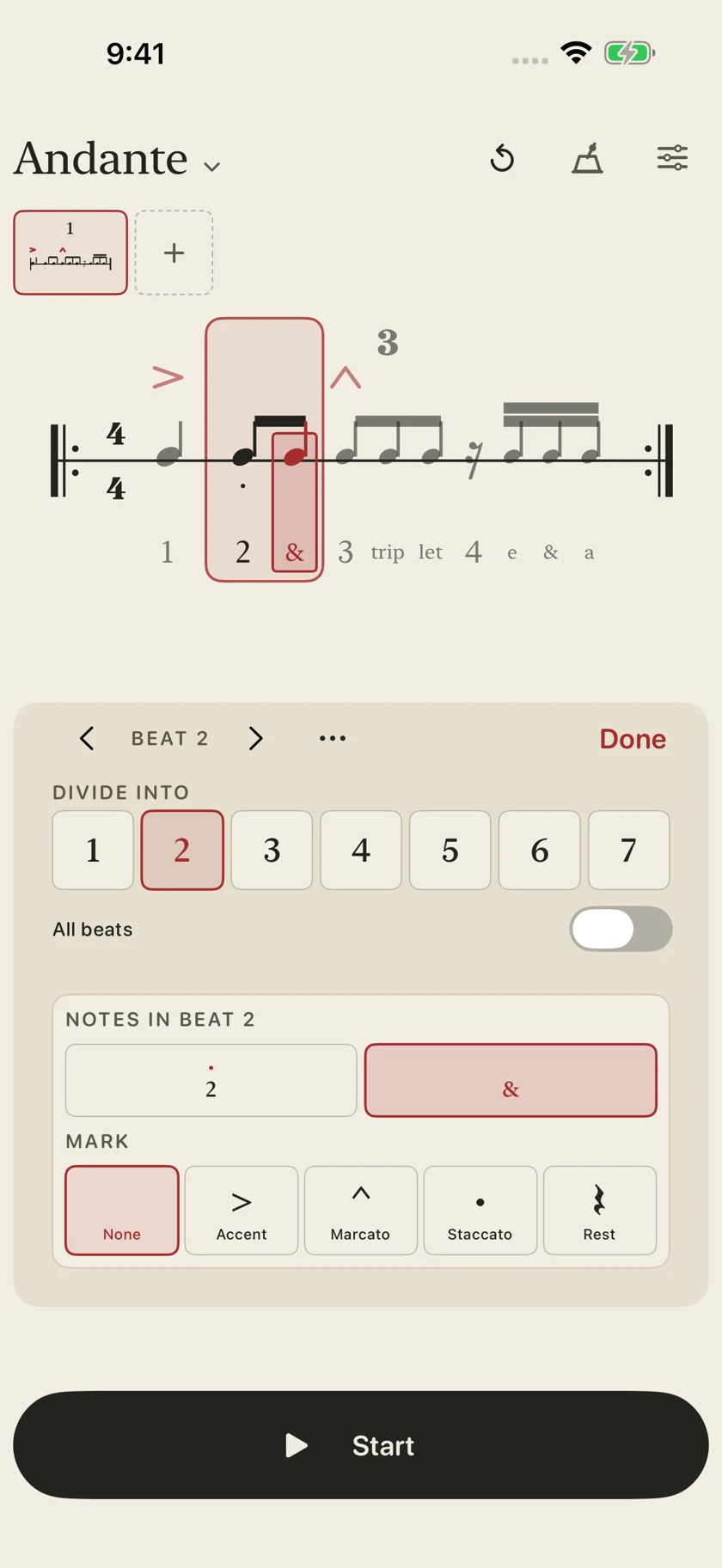
- Tap a beat in the written bar to open its rhythm editor.
- Under Divide into, choose how many notes fill that beat. Pro includes advanced tuplets such as five, six, and seven notes.
- Select a note under Notes in beat.
- Choose its mark: None, Accent, Marcato, Staccato, or Rest.
- Use the beat arrows to move to another beat. Leave All beats off when you want different rhythms in different beats.
- Tap Done, then play the bar and listen to the result.
What the marks do
Accent adds emphasis; Marcato gives a stronger marked attack; Staccato shortens the note’s click; Rest leaves that note silent while time continues. None removes an added mark.
06 · Pro
Turn your pattern into a practice plan
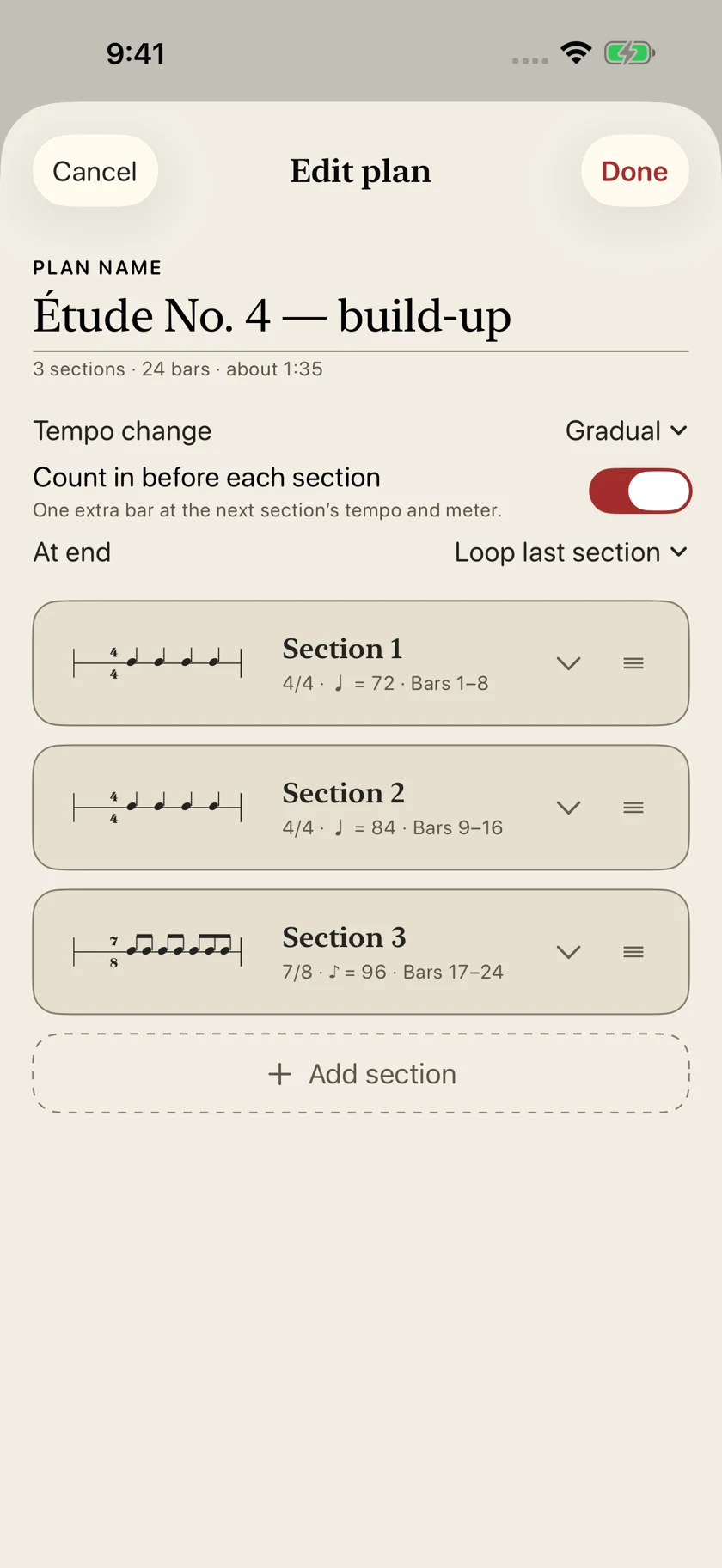
A plan arranges sections with their own tempo, meter, rhythm, and number of bars. Open Practice plans from the main screen or Settings.
- Use the + or Create a plan control and give the routine a recognizable name.
- Set the first section’s tempo and total bar count. Edit its meter and rhythm to suit the exercise.
- Use Add section for the next stage. Repeat for each part of your routine.
- Choose the tempo transition: Instant changes at the next section; Gradual moves toward the next section’s tempo over the final bar.
- Enable Count in before each section if you want one preparation bar at the next section’s tempo and meter.
- Choose the ending: Stop, Loop whole plan, or Loop last section.
- Tap Done to save. Load the plan, then tap Start on the metronome.
During playback, follow the section and bar position. The rhythm overview helps you see the patterns used by the loaded plan.
Reuse a measure without rebuilding it
In the plan’s measure actions, choose Copy measure. At the destination, use Paste over this measure to replace it or Paste as new measure to insert a bar. Check the destination section’s length afterward. If a tempo choice appears, remember that the section shares one tempo; accepting the copied tempo changes that section’s tempo.
Use section actions to duplicate a section when the next exercise is a variation of the same pattern. Tap Done to keep plan edits; canceling an edit can discard unsaved changes.
07 · Pro
Check your pitch with the chromatic tuner
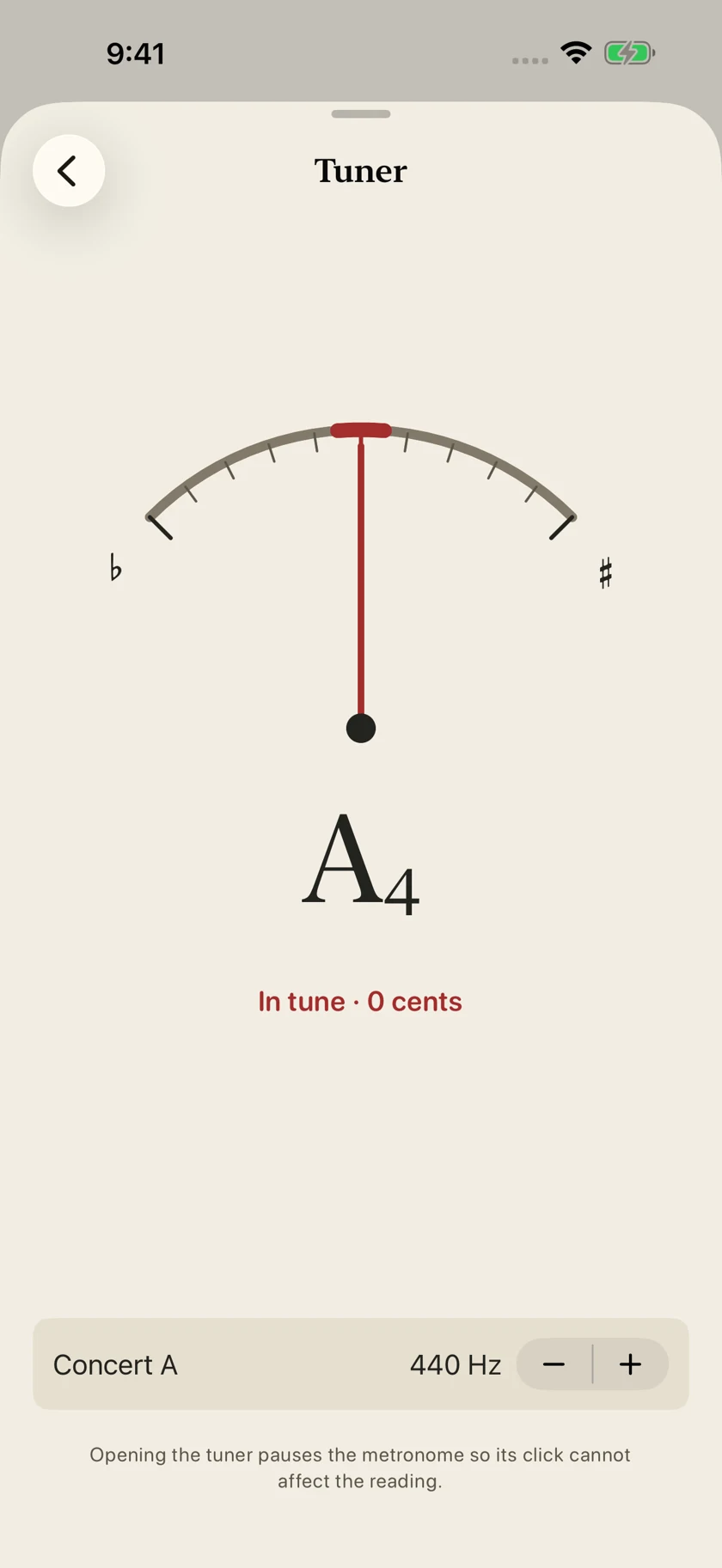
- Open Settings → Tuner.
- Allow microphone access when iOS asks. Opening the tuner pauses the metronome.
- Play one sustained note in a quiet space and let the reading settle.
- Read the detected note and the sharp/flat indication. Adjust your instrument until the needle approaches the center and the cents reading approaches zero.
- If your ensemble uses a different reference, adjust Concert A. The reference can be set from 430–450 Hz; 440 Hz is a common starting point.
If the display isn’t responding, check microphone permission, move closer to the instrument, and reduce surrounding sound. Close the tuner when you’re ready to return to practice.
08 · Pro · Free preview
Practice with the traditional pendulum
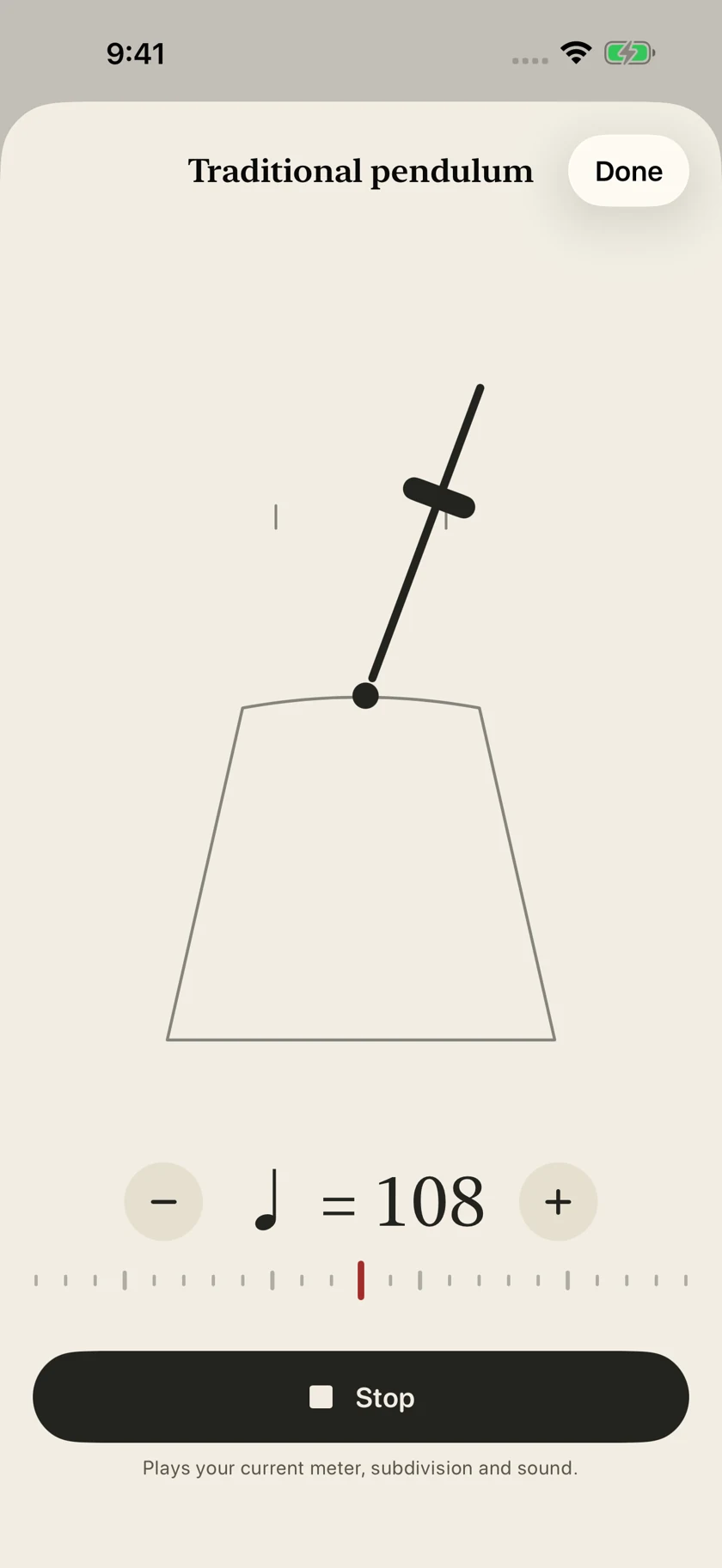
- Tap the pendulum icon on the main screen, or open Settings → Traditional pendulum.
- Set the tempo using the shared plus/minus controls or ruler.
- Tap Start and follow the swinging arm. The beat follows the arm’s center crossing.
- Tap Stop when finished, then Done to return.
The pendulum follows the main metronome’s tempo, meter, subdivision, and sound. Tempo changes are shared between the two views. When a practice plan controls the tempo, make tempo changes in the plan instead.
The free app includes a two-measure preview. Pro unlocks continued use of the pendulum.
09 · Free
Make the click comfortable to follow
- Open the sliders-style Settings button, then Sound.
- Choose a click voice and use Preview to listen. Precision is crisp and electronic, Wood block is warm, and Clave is bright.
- Adjust Downbeat, Group starts, and Other beats under Click levels. Give group starts more emphasis when learning an irregular meter.
- Return to the metronome and play your actual pattern to check the balance.
Use Settings → Appearance to choose a light, dark, or system appearance. In Help & Support, open the notation explanation when you want a reminder of the symbols.
10 · Put it into practice
Two routines to try
A steady-pulse warm-up Free
- Set 4/4 at 80 BPM with quarter notes.
- Turn on a one-bar count-in and play along.
- Switch to eighth notes while keeping the same pulse.
- Return to quarters and check whether your timing stays steady.
A three-stage build-up Pro
- Create three 4/4 sections of eight bars each.
- Set their tempos to 72, 84, and 96 BPM.
- Start with Instant transitions and a count-in before each section.
- Choose Stop at the end. Once comfortable, try Gradual transitions or loop the last section.
11 · Questions & fixes
When something feels unexpected
Why can’t I choose a subdivision?
Some subdivisions don’t fit the selected meter and pulse. Choose an available option or change the meter. Independent per-beat rhythms and advanced tuplets require Pro.
Why did more than one beat or bar change?
Check the control’s scope. Turn off All beats for an independent beat edit, and check selected-bar versus all-bars controls in a loop. In a plan, repeated bars can use the same underlying phrase pattern, so changing that pattern also changes its repetitions.
Why can’t I change the tempo of a loaded plan here?
The plan’s sections control their own tempos. Edit the section tempo in the plan, or exit the loaded plan to return to the regular metronome controls.
I can’t hear the click. What should I check?
Check device volume and the current speaker/headphone route. Open Sound settings and preview a click voice; check that click levels aren’t turned down. A rest is deliberately silent. After an interruption, confirm the output and tap Start again.
The tuner doesn’t hear my instrument.
Check Common Time’s microphone permission in iOS Settings. Play one sustained note close to the microphone, away from other sounds. The metronome pauses while the tuner is open so its click won’t interfere.
Which features need Pro?
The everyday metronome, compatible basic subdivisions, accents, and up to four looping bars are free. Pro adds independent per-beat rhythms, advanced tuplets, saved practice plans, tuner, and continued pendulum use. Pro is an optional one-time purchase, with current local pricing shown in the app.
I already bought Pro. How do I restore it?
Open Common Time Pro in Settings, then use Restore Purchases on the purchase screen. Use the Apple Account used for the original purchase. If restoration still fails, contact support with your app version and what happened.
Still need help? Open Settings → Help & Support → Contact support to include your app and device details, or email support@commontimemetronome.com. Describe the meter, tempo, and action that caused the issue.